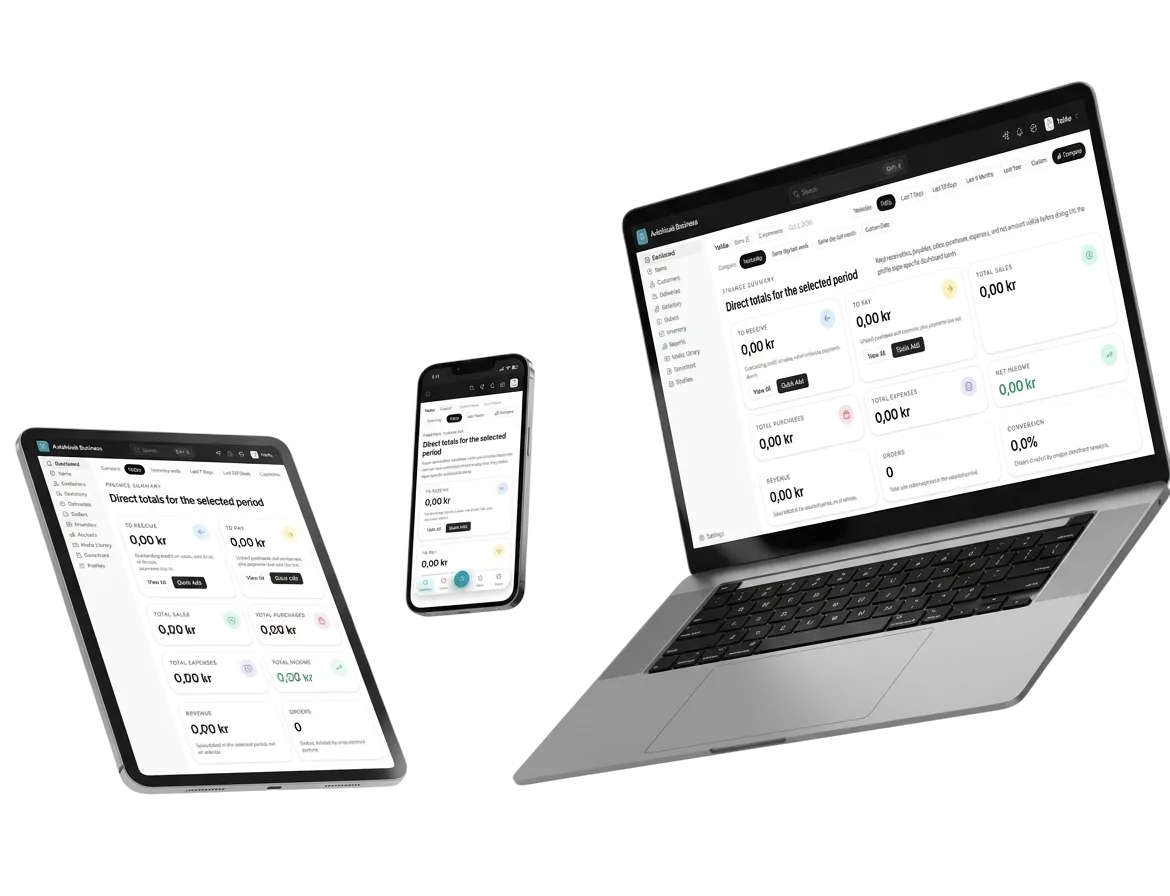
A first draft of every item description
In the item form, press AI Generate in the description editor. It drafts from the item's name, categories and price, you edit the preview, and nothing is saved until you accept.
AI Generate Description · Pashmina shawl, maroon
Accepted into the description
Warm tone, mention hand weaving, two short paragraphs New
In short
The item description editor has an AI Generate button that drafts a description from the item's name, categories and price, with optional Custom Instructions. The draft appears in an editable preview, and you choose Accept, Regenerate or Try Again.
The problem it solves
An online shop with 600 items and a blank description on 500 of them sells less and ranks lower. Writing each one from scratch is the job that never gets done.
How it works
4 steps, start to finish
-
1
Open the item
In the item create or edit form, find the description editor.
-
2
Press AI Generate
Add Custom Instructions if you want a tone or length, then Generate.
-
3
Edit the preview
The draft appears in Preview (edit before accepting).
-
4
Accept or retry
Accept puts it in the description; Regenerate tries again.
In detail
What AI descriptions does for you
-
In the editor
A sparkles button in the description toolbar.
-
Uses your item
Drafts from the item name, categories and price.
-
Your words last
Edit the preview before accepting it.
-
Regenerate
Not right? Ask for another draft.
-
No. It only goes into the item when you press Accept.
-
The item's name, categories and price, plus any Custom Instructions you add.
-
Yes. The preview is editable before you accept it.
AI descriptions · Free to start
Try AI descriptions on your own business
Set up in a couple of minutes. Your catalogue, orders and books stay yours to export.
- Live in 2 minutes
- Free to start
- No credit card