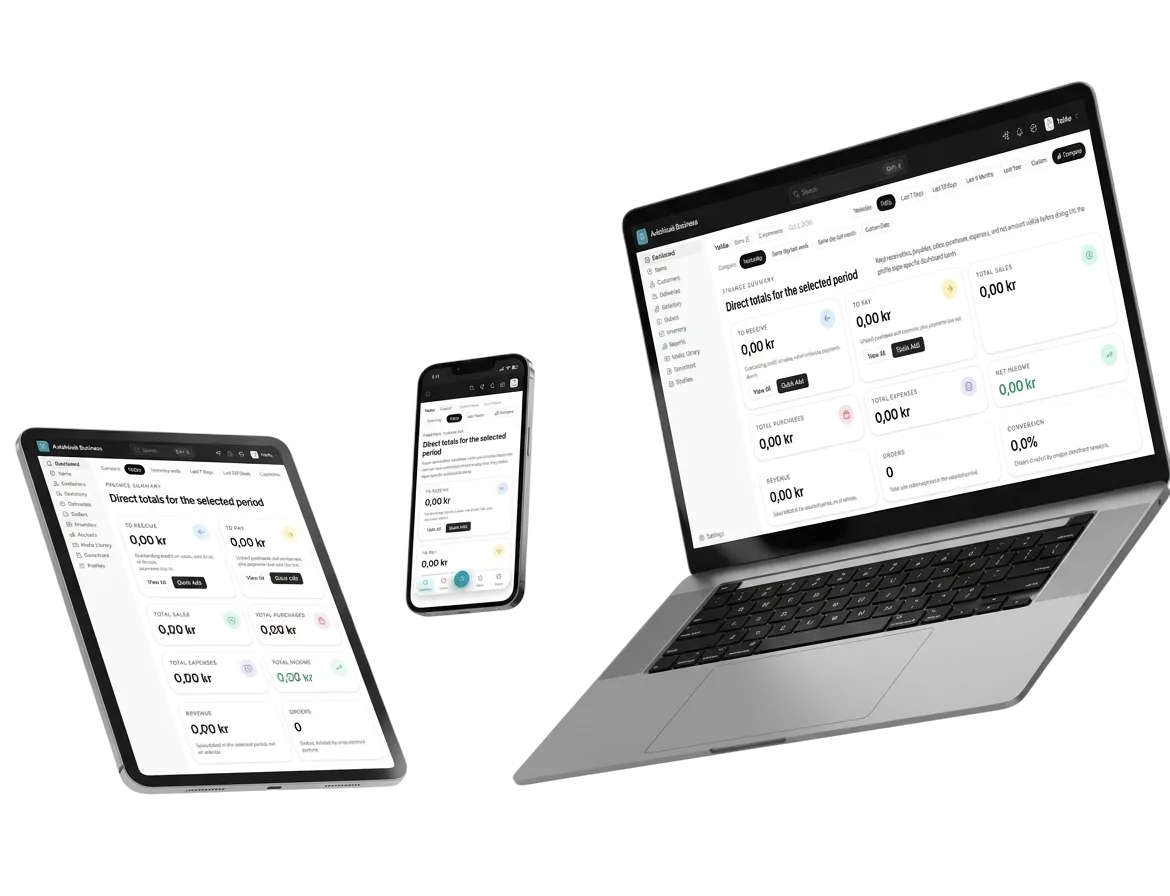
Find any item from one search box
Type part of a name, a SKU, a scan code or a word from the description. The catalogue narrows as you type, so the item people ask for is one tap away.
-
Masala tea
TEA-01 · 100011
Rs 60.00
-
Ilam tea 200 g
TEA-12 · 100012
Rs 240.00
-
Veg momo
MOMO-V · 100030
Rs 180.00
-
Chicken momo
MOMO-C · 100031
Rs 220.00
-
Lemon soda
SODA-L · 100042
Rs 90.00
-
Oat cookies
BAKE-07 · 100052
Rs 120.00
In short
The POS search box matches an item's name, SKU, scan code and description at once, so staff find an item by whatever they know about it. Typing a full scan code and pressing Add puts the item straight on the sale.
The problem it solves
Staff know the same item by different things: its name, the code on the packet, the SKU on the shelf. A till that only searches one of them sends people scrolling while the queue waits.
How it works
4 steps, start to finish
-
1
Type what you know
A name, a SKU, a scan code or a word from the description all go in the same box.
-
2
Narrow the list
The catalogue filters as you type; the Recommended and A to Z views help when you are browsing instead.
-
3
Tap to add
Tap the item and it lands in the Current Sale, with a variant picker when the item has variants.
-
4
Or type the whole code
Type or paste a scan code and press Add to put the item straight on the sale.
In detail
What catalogue search does for you
-
Four fields, one box
Name, SKU, scan code and description are all searched at once.
-
Codes work too
A full scan code typed into the search adds the item with Add.
-
Recommended
A Recommended view for the items you sell most often.
-
A to Z
Browse the whole catalogue alphabetically when you do not know the name.
-
Variants on tap
An item with sizes or flavours asks which one before it is added.
-
The item name, its SKU, its scan codes and its description, all from the same search box.
-
Yes. Type or paste the scan code and press Add; the item goes straight onto the sale.
-
Yes. The POS searches the one catalogue that inventory and the storefront use, so there is nothing to keep in sync.
Works together with
- Scan a barcode with the device camera instead of typing the code.
- Each line carries its quantity, variant and a note for the kitchen or packer.
- The codes an item answers to, searched at the point of sale too.
- Sizes, colours or measures, each counted on its own.
- Print scan code labels for one item or a selection, on a roll or A4 sheets of 24 or 40.
Catalogue search · Free to start
Try catalogue search on your own business
Set up in a couple of minutes. Your catalogue, orders and books stay yours to export.
- Live in 2 minutes
- Free to start
- No credit card