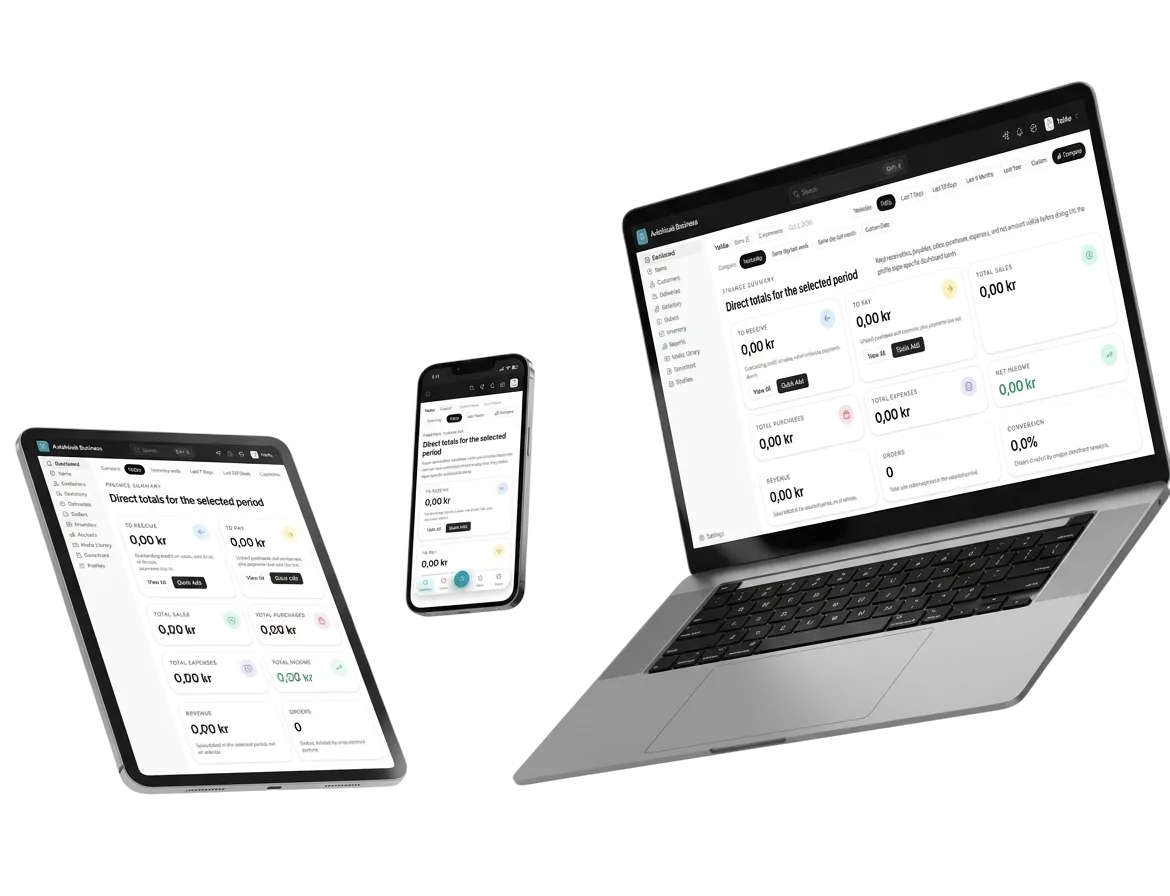
Every shift marked on time, late or early
Each attendance is compared with the person's schedule and your Attendance Rules. It lands as On Time, Late, Very Late or Leave Early, and anything the rules cannot decide waits as Pending for a manager.
All Attendance · Chiya Ghar café
In short
Shift status compares each clock in and clock out with the employee's schedule and the grace minutes in Attendance Rules, and marks it On Time, Late, Very Late, Leave Early or Overtime. An attendance with no schedule for the day stays Pending until a manager validates it.
The problem it solves
Reading punch times against a roster by hand takes a morning a week, and the rules end up applied differently for different people.
How it works
4 steps, start to finish
-
1
Schedule the shift
Each person has a work schedule with a start and end time.
-
2
Set the grace
In Attendance Rules, turn on Quick Rules such as Late Within Grace and set the minutes, 15 by default.
-
3
Attendance is marked
Inside the grace it is On Time; beyond it Late, and over an hour late Very Late.
-
4
Validate the rest
No schedule found for today means the attendance requires manager validation.
In detail
What shift status does for you
-
On Time
Within the grace period, automatically valid.
-
Late and Very Late
Minutes late are counted; more than 60 is Very Late.
-
Leave Early
A clock out before the scheduled end is flagged.
-
Pending
Attendance the rules cannot decide waits for a manager.
-
Late alerts
A late clock in sends a notification.
-
Custom rules
Create Custom Rule when the quick rules are not enough.
-
Only when you turn one on. Quick Rules such as Late Within Grace and Early Within Grace take the minutes you set.
-
The attendance is kept but marked as needing manager validation, with the note No schedule found for today.
-
On the clock panel and in My Attendance; managers see everyone in All Attendance and the calendar views.
Shift status · Free to start
Try shift status on your own business
Set up in a couple of minutes. Your catalogue, orders and books stay yours to export.
- Live in 2 minutes
- Free to start
- No credit card