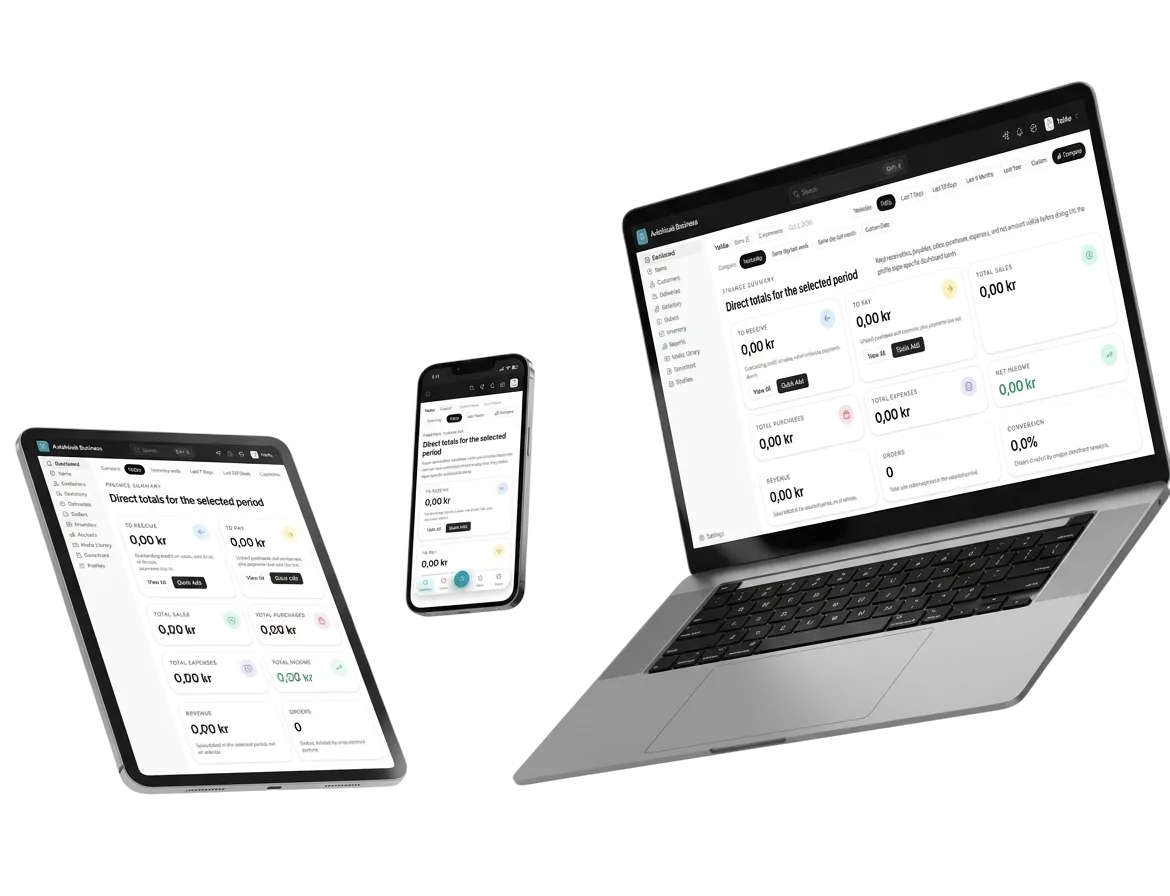
Dates go in when the stock comes in
For items that go off, each purchase order line asks for a lot number, a manufactured on date and an expires on date. A shelf life fills the expiry in for you.
Receive stock · PO-0163
Receipts on this order
Pure ghee 500 ml New
In short
When an item tracks expiry dates, every purchase order line and every receipt records its lot number, manufactured on and expires on dates. The expiry must be after the manufacture date, and an item's shelf life in days can fill the expiry in automatically.
The problem it solves
Dates copied from the carton onto paper, or not copied at all, are why expired stock gets found on the shelf instead of in a report.
How it works
4 steps, start to finish
-
1
Set it on the item
In Advanced, switch on Track batches and Track expiry dates, and give a Shelf life in days if it is fixed.
-
2
Order with dates
On the purchase order, open + Batch on a line for its lot number, manufactured on and expires on dates.
-
3
Receive the delivery
In Receive stock, confirm the quantity, unit cost and dates, then Post receipt.
-
4
It becomes a lot
The dates travel with that lot to the till, the Expiring soon list and the lot page.
In detail
What expiry and manufacture dates does for you
-
Both dates
Manufactured on and expires on, on every line that needs them.
-
Checked
An expiry before the manufacture date is refused, and a missing required date is named by item.
-
Shelf life fill
Give an item its shelf life and the expiry is filled in from the manufacture date, or from the day it arrives.
-
Bikram Sambat
Profiles on the Nepali calendar enter dates in BS.
-
Finish later
An order paid before its batch details were known can be completed with Save batch details.
-
No. Only items with Track expiry dates switched on ask for them; everything else is received as before.
-
Receive stock warns that it is more than is still pending and lets you receive it anyway.
-
Yes. Over MCP, an assistant can create a purchase order with lot numbers and dates and receive it, with the same checks.
Expiry and manufacture dates · Free to start
Try expiry and manufacture dates on your own business
Set up in a couple of minutes. Your catalogue, orders and books stay yours to export.
- Live in 2 minutes
- Free to start
- No credit card